
Nedzo now scores every booked appointment for lead intent. Each booking gets one of four levels, from Curious to Committed, plus a short reason. You know which leads are ready to buy before you walk into the meeting.
We shipped four more things today: phone number groups for big call campaigns, email threads in your Unibox, WhatsApp templates through the API, and a simpler way to connect WhatsApp.
Lead intent scoring
Your calendar shows ten booked calls. Some of those people want to buy today and some only wanted a price, but you can't tell which, so you prep the same way for all ten.
Now Nedzo reads each conversation that ended in a booking and picks a level.
- Curious: gathering info. Need and urgency are weak or unclear.
- Interested: a real need, but no rush yet or some open concerns.
- High Intent: a clear need, wants to move soon and ready for next steps, but hasn't said yes.
- Committed: says they plan to buy or start, and sees the appointment as a firm next step.
Each level comes with a reason of 20 words or fewer, so you can see why Nedzo picked it.
How it judges
Nedzo only looks at what the lead said. It ignores their tone and anything your agent said. A booking on its own never counts as High Intent or Committed, and when the signs are mixed, Nedzo picks the lower level. Conversations that didn't end in a booking don't get a score.
Where you see it
It works on every channel that can book: phone, web calls, chat widget, SMS, email, Messenger, Instagram and WhatsApp. You see the level on the Analysis tab in Conversation Logs. It also goes out in your Post-Conversation Webhook, and your workflows can branch on it. You could send Committed leads straight to your best closer and send Curious leads a case study first.
Phone number groups for outbound calling
Run a big campaign from one number and that number makes hundreds of calls. It burns out fast.
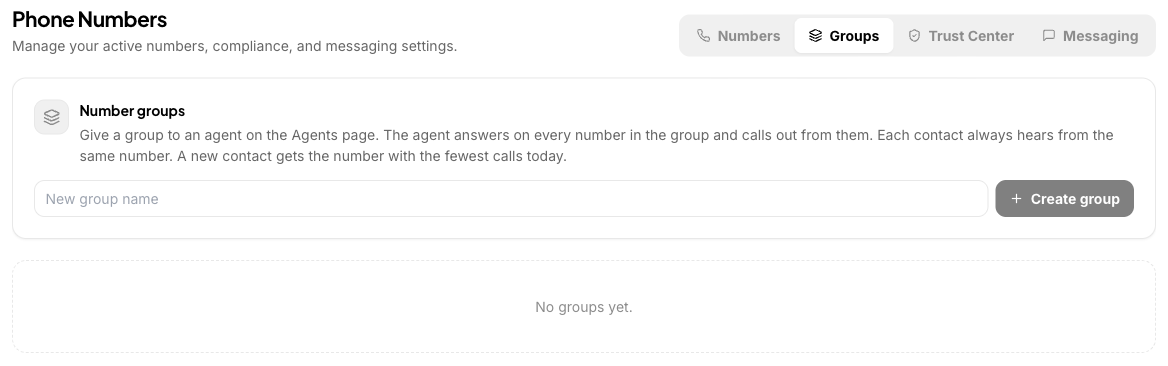
Now you can put numbers in a group and give the group to an agent.
- The agent answers calls on every number in the group.
- The agent calls out from every number in the group.
- The first call to a contact uses the group number with the fewest calls that day.
- Every later call to that contact comes from the same number.
You spread the load, and each contact still sees one number they know and can call back. If that number leaves the group, Nedzo picks a new one by the same rule and sticks with it.
Campaigns spread their calls across the group without any extra setting. Workflow call steps and the API call endpoint follow the same rule. You manage groups on the Phone Numbers page. A number can only be in one group, and an agent can have single numbers, groups, or both.
Send WhatsApp templates through the API
Your app knows when an order ships, and you want to send a WhatsApp template right then. Before, you could only send templates from the dashboard.
Now the public API sends approved WhatsApp templates. You pass the template name, the language and the variables. Templates with an image, video or document at the top work too.
If you send a template that isn't approved, or isn't on that number, the API tells you why. It does the same for a media file with the wrong type or size.
Email threads in your Unibox
Every email used to sit in your Unibox as its own bubble, with no subject and no To line. You couldn't tell which emails went together.
Now Nedzo groups each email conversation into one card, like a Gmail thread. Your texts, calls and chats sit between the cards, the same as before.
- The card shows the subject, how many emails it holds and which address it came through.
- Click the header to fold or open it.
- The newest email and any unread ones open in full. Older ones show as one line.
- In long threads, older emails tuck behind a badge like "+4 earlier".
- The menu lets you copy a link to the thread, mark it read or unread, or open it in Conversation Logs.
Reply right in the thread
Click Reply and a composer opens inside the card. From is the address the thread uses and To is the contact. Cc fills in from the thread, and you can add Bcc or edit the subject. Attachments work as before. If you want a new thread instead, pick Email in the bottom composer.
Emails show with their own layout, the way they were sent. New emails keep their inline images, and "Show original" shows the email headers for emails from now on.
Two more changes for your team
Every AI message on every channel now shows the same AI avatar, with your workspace or brand logo, and the label "AI · agent name". And times in the Unibox now follow your workspace time zone, so two teammates in two cities see the same time on the same email.
Connect WhatsApp Business in a few clicks
Connecting the WhatsApp Business API used to mean too many screens and too many names you didn't know.
Now you click Connect and Meta's own window opens over Nedzo. The only names you see are your brand and Meta. You choose how to connect:
- Use your WhatsApp Business app number and keep using the app on your phone. This is called WhatsApp coexistence.
- Use a new number, API only, with no phone app needed. A number you bought in Nedzo works.
Inside Meta's window you can also start with a display name and add a real number later from the WhatsApp panel.
While Meta's window is open, a step by step guide sits beside it. Each step shows a picture of the Meta screen and what to pick.
Meta sends a code to verify your number. If it texts the code to a Nedzo number, the code shows up in your Unibox. If Meta calls a Nedzo number to read the code out loud, your AI agent doesn't answer it as a lead. Nedzo shows you the code so you can type it into Meta's window.
Start a free trial and try it on your own leads.