
Nedzo now answers your support email. You forward your support inbox to Nedzo, and your AI email support agent reads every new email and replies in the same thread. Every email shows up in Unibox, next to your calls and texts. You can also have replies go out from your own address.
Say a customer emails a question at 6pm on a Friday. Nobody reads it until Monday, and by then they bought from someone else. With Nedzo on the inbox, your AI agent replies while you're off.
AI auto reply to customer emails
You keep your inbox where it is and forward it to Nedzo.
Each workspace gets its own Nedzo forwarding address. You point your support inbox at it, and from then on every new email lands in Nedzo. Your agent reads it and writes the reply. The reply goes back in the same email thread, so the customer sees it like any other answer in their inbox.
When the customer writes back, their reply lands in the same conversation. This works in Gmail, Outlook and Apple Mail, and "Re:" or "Fwd:" in the subject doesn't break it.
Nedzo also finds the real sender. When Google Workspace or Microsoft 365 forwards an email, Nedzo pulls out the person who wrote it, so your agent answers the customer and not your forwarding rule.
No reply loops
Out-of-office replies can bounce off each other forever, one autoreply answering another. Nedzo spots autoreplies, bounce notices and mailing list mail, and it doesn't answer them.
How to forward your support email to AI
Setup lives on one page, in Settings, under Channels, then Email.
Step 1. Copy your forwarding address
Your workspace address sits at the top with a copy button. You can make a new one at any time.
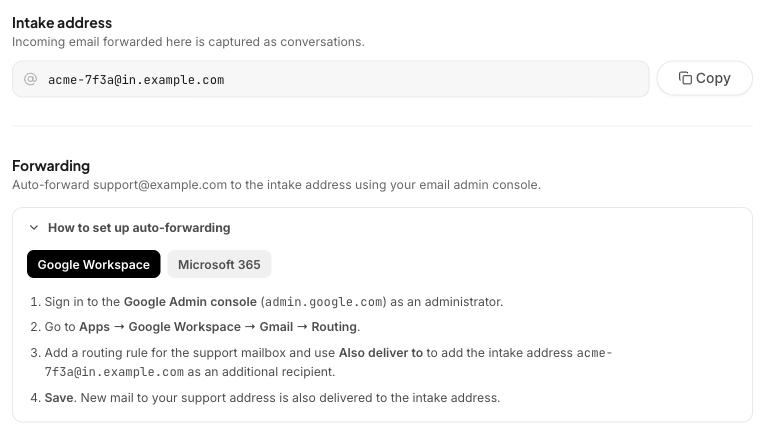
Step 2. Turn on forwarding
The page has step-by-step instructions for Google Workspace and Microsoft 365.
When you turn on forwarding, Google or Microsoft sends a confirmation code to the forwarding address. That's Nedzo, so Nedzo shows you the code right on the setup page. You don't have to dig through any inbox, and those confirmation emails never turn into conversations.
Step 3. Verify it
Nedzo sends a test email to your support address. If it comes back through your forward, you're verified. If it doesn't show up, you get tips to fix it.
Step 4. Connect your agent
Your agent starts replying once the email channel is live and has an agent connected to it. Your balance, usage limits, pause and max message settings all still apply.
Reply from your own address
By default, replies go out from your workspace address with your brand as the sender name. That needs no setup.
Want replies to come from support@yourcompany.com? Add a reply email on the same settings page. It has to be on your business domain, so personal addresses like Gmail or Outlook won't work.
Nedzo then shows you a few DNS records to add, each with a copy button. The page has help for Cloudflare, GoDaddy, Namecheap and Squarespace. On Cloudflare, set the records to DNS only, not proxied.
Click Validate, or just wait, since Nedzo also checks in the background. You see a pass or fail for each record, so you know which one is wrong. DNS changes can take a while to show up. If yours aren't there yet, Nedzo tells you to try again in a few minutes.
Once the records pass, replies go out from your own address. If you skip this step, nothing breaks and replies keep going out from your workspace address.
DMARC check
Nedzo also checks your domain for a DMARC record. If you don't have one, you get a starter record to copy and a short note on why it matters. It never blocks your email.
Sender name
Set one sender name in settings. Every email you send uses it, whether your agent wrote it or a teammate did, and Unibox shows that name on sent emails too.
Email in Unibox
Every email conversation lives in Unibox. You see each email with its formatting and attachments. Long quoted history folds away behind "show trimmed content", and you click to open it.
When you reply, the composer shows which address you're sending from, and you can attach files. Each sent email shows whether it was delivered or bounced, with the reason.
If someone marks your email as spam, Nedzo stops sending to them. If you try to email an address that bounced, unsubscribed or marked you as spam, Nedzo blocks the send and tells you why.
Start a free trial and put an AI agent on your inbox.