
You can now port your phone number to Nedzo yourself. Keep the business number your customers already know and move it to your AI receptionist from your Phone Numbers page, with no back and forth with our team. You see every step, and you get an email when something changes.
Two more things shipped today. You can block spam senders on every channel, and you can @mention a teammate in a note.
Keep your business number with your AI phone agent
Your number is on your website, your Google listing, your truck and your business cards. Changing it costs you calls. With porting, you keep the number and point it at your AI agent.
How number porting works
You start a port from the Phone Numbers page, and a short guided window walks you through it:
- Nedzo checks that your number can move. If it can't, you find out now, before you fill in anything else.
- You enter your name and address the way your current phone company has them, plus your account number, or your PIN for a mobile number.
- Nedzo creates the letter of authorization for you, and you sign it right there.
- You upload a recent bill from your phone company.
- You review everything and submit.
Watch the name and address. A mismatch there is the top reason ports get rejected, so copy them from your phone bill word for word.
US and Canada numbers work start to finish without our help.
See where your port stands
Each port shows its status on the Phone Numbers page, from draft to in progress to port date confirmed to ported. When it's done, your number goes live on Nedzo and your AI agent answers it.
If the phone company rejects the port, you see the reason. Fix it and resubmit.
Email updates for the people who need them
Nedzo emails you when your port is submitted, when the port date is set, when it's done and when it fails. If the port needs attention, like a new comment or a flagged problem, the account's admins and owners get an email too. Nobody has to keep checking the page.
Cancel a port request
Say you typed the wrong number, or changed your mind. Until now, the request stayed on your page, and it blocked you from starting a new port for that same number.
Now every port request has a Delete option in its menu. What happens depends on where the port is:
- A draft disappears right away.
- A port in progress asks the phone company to cancel. It shows "Cancellation requested" until they confirm, then disappears.
- Within 48 hours of the port date, you can't cancel online, and Nedzo tells you to contact support.
Before anything happens, Nedzo asks you to confirm and tells you whether you're throwing out a draft or cancelling a live port. Once it's cancelled, you can start a fresh port for that number.
Block spam messages in your inbox
Spam clutters your inbox, and your AI agent replies to it, which costs you money.
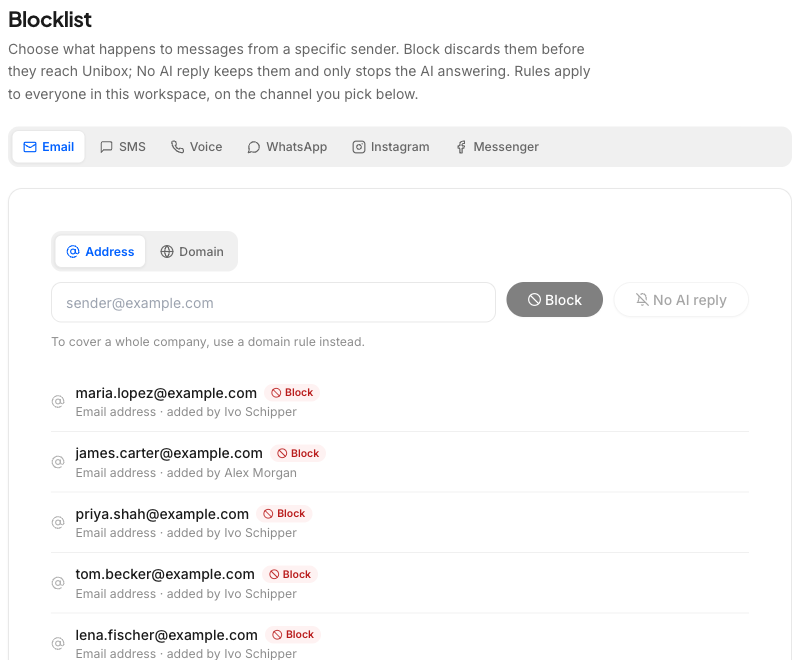
Now you can block a sender. Pick Block sender from a conversation's menu, or select a bunch of conversations and block all their senders at once. It works on SMS, WhatsApp, Instagram, Messenger, email and phone calls.
Nedzo drops a blocked message before anything happens. It doesn't open a conversation, your AI agent doesn't reply, and you aren't charged. If you change your mind, unblock the sender and their messages come through again.
Block whole email domains
Some spam comes from a whole domain, and blocking one address at a time never ends.
Your workspace settings now have a blocklist for your email channel. Add a full domain or a single address, and Nedzo ignores email from it. That email never shows up in Unibox, and your AI agent never answers it.
Each workspace has its own list. If you run an agency, one client's blocklist never touches another client's email.
Mention teammates in internal notes
You need a coworker on a customer thread. So you message them somewhere else, paste a link and explain the whole thing.
Now you type @ in an internal note and a list of your teammates pops up. Keep typing to filter by name or email. Pick one person, or tag a few.
Each person you tag gets an email with the note, who wrote it, which customer it's about and a link that opens the conversation in Unibox. Tagged names stand out in the note, so everyone can see who's been pulled in.
It's live in your account now.