
Your Nedzo chat agent now knows which channel it is on. It writes short texts on SMS, casual replies on Instagram and full emails on email. You run one multichannel AI agent, and each reply fits where it lands.
We shipped two more things for your contacts today. Custom fields now hold numbers, dates and yes or no values. And you can save your contact filters as views.
AI chatbot tone by channel
Most AI agents answer a text like they write an email. Three paragraphs, a greeting and a sign off. On a phone screen it looks like spam.
Then they answer an email like a text. One line, no hello. Your customer thinks you don't care.
Now one agent changes its style for each channel:
- SMS: short and plain, with no formatting. It aims to fit in one 160 character text.
- WhatsApp: chatty. It can use bold, italics and emoji. Longer than a text, still tight.
- Instagram DM: casual and short. Emoji are fine.
- Messenger: casual, medium length.
- Web chat: a few sentences, with basic formatting.
- Email: longer, with paragraphs, a greeting and a sign off.
AI SMS reply length
Sometimes the AI writes a text that runs too long. Nedzo won't chop it in half mid sentence. It asks the AI for a shorter version, and your customer gets one clean text.
Your prompt stays yours
You don't change a word of your agent's prompt. Nedzo adds the channel rules behind the scenes. You write one prompt, and Nedzo shapes the reply for each channel.
Number, date and yes or no custom fields
Until today, every custom field held text. Now you pick a type when you make a field:
- Text, same as before. This is the default.
- Number, for things like the number of seats or the deal size.
- Yes or no, for things like "paid deposit" or "wants a callback".
- Date, for things like a renewal date or a move in date.
You see each field's type in your settings. When you edit a contact, you get the right input for the type: a number box, a toggle for yes or no, or a date picker. Your contacts table shows dates as dates and yes or no fields as "Yes" or "No".
Filter contacts by date
Each type gets its own filters. Text gets "contains" and "equals". Numbers get "greater than" and "less than". Yes or no gets "is true" and "is false".
Dates get four: before, after, equals and in between. Say you run a gym and want every member whose contract ends in June. Pick the field, pick "in between", then pick June 1 and June 30.
Branch workflows on dates
Workflow conditions get the same four date rules. Say a workflow sends a renewal reminder. Add a condition on the renewal date, and contacts who renew before July 1 get one message while everyone else gets another.
Saved views for contacts
You build the perfect filter. Hot leads, tagged "quote sent", sorted by newest. You close the tab and it's gone, so tomorrow you build it again.
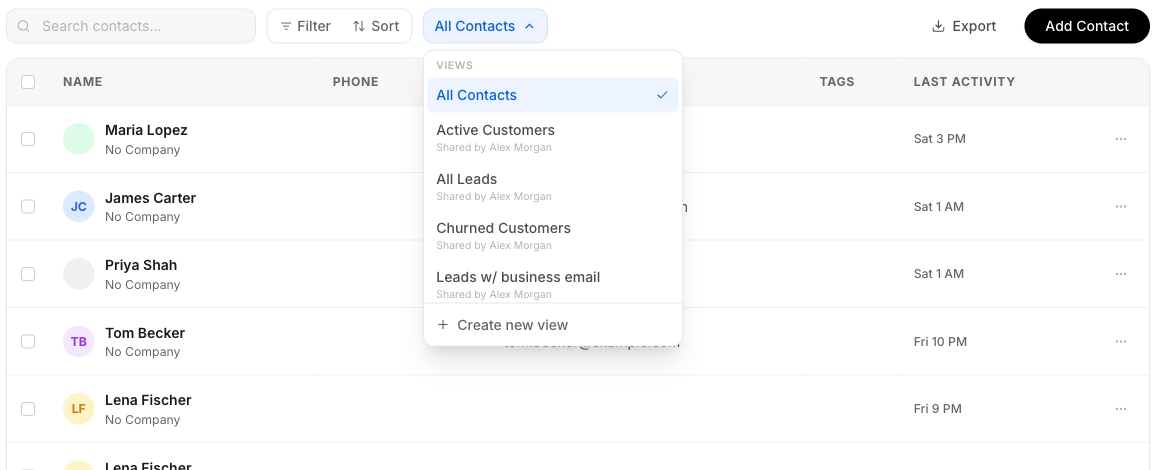
Now you save it as a view:
- Set your filters and sort.
- Click "Create new view" and give it a name.
- Switch between views from the dropdown next to your contact search.
If you change the filters on a saved view, a Save button shows up. Click it to keep the change. You can rename or delete any view you made.
Every workspace starts with "All Contacts", which shows everyone with no filters. You can't rename it, delete it or save over it. If you change its filters, Nedzo offers to save them as a new view.
Each person on your team keeps their own list of views.
It's live in your account now.