
Nedzo now has a native Pipedrive integration. Connect Pipedrive once, and every time you add or change a person there, Nedzo gets them as a contact. Your AI agent can also send data back to Pipedrive.
Two more things shipped today. Active Hours on each phone number decide when your team rings and when the AI answers. And a workflow can now start from a webhook and map any field onto a contact.
Pipedrive contact sync
Your sales team lives in Pipedrive and your AI agent lives in Nedzo. Without a link between them, every new lead means copy and paste, or paying for a third tool to glue the two together.
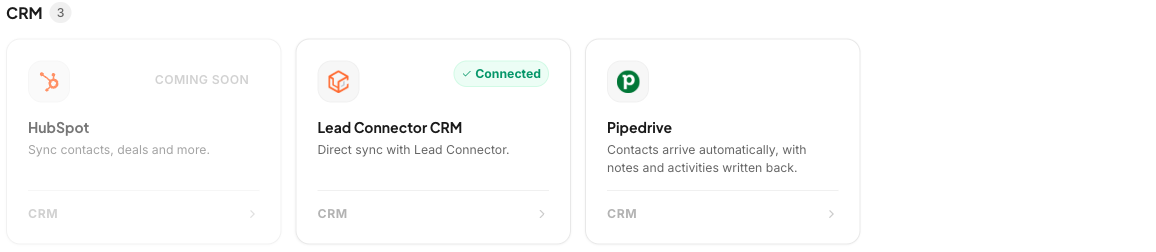
Now you click "Connect Pipedrive" and the link is set up.
How it works
Nedzo sets up the connection with Pipedrive for you. You don't copy a URL or touch any Pipedrive settings.
- Add a person in Pipedrive and Nedzo creates the contact.
- Change a person in Pipedrive and Nedzo updates the contact.
- Nedzo matches by phone first, then by email, so you don't get duplicates.
- Your Pipedrive labels and custom fields come over with their real names.
Nedzo doesn't bulk import your existing Pipedrive list. People come over when you add or change them.
If you disconnect Pipedrive, Nedzo removes its link from your Pipedrive account, so nothing gets left behind.
Send data back to Pipedrive
Your agent's actions now include an Integrations option for Pipedrive. The dropdowns fill with your own Pipedrive options. You pick where the data goes, and Nedzo sends it there.
After hours call answering with Active Hours
Your phone rings at 10pm. Your AI agent answers. The caller asks for a person, and the AI tries to hand them to a team that went home hours ago.
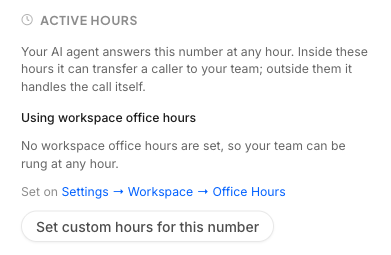
Now each phone number has Active Hours. Your AI agent still answers the number at any hour. The hours decide one thing:
- Inside your hours, the AI can transfer a caller to your team.
- Outside your hours, the AI handles the call itself.
How to set it up
Open a number on the Phone Numbers page and find Active Hours in its settings. By default, a number uses your workspace office hours. You see them as one short line and a strip of days, like "Mon to Fri, 9:00 AM to 5:00 PM".
If one number needs different hours, click "Set custom hours for this number". Turn each day on or off and set start and end times, and use "Copy to other days" to save clicks. You can switch back to "Use workspace office hours" any time. Times follow your workspace time zone.
Active Hours cover incoming calls. For outbound calls, you set the calling days and hours in the workflow call step.
Webhook trigger workflow with field mapping
A lead fills in a form on your site, and the form sends a webhook. If only the phone and email make it into your CRM, the rest of their answers are lost.
Now a workflow can start from a webhook, and you map every field.
How it works
- Add the Webhook trigger to a workflow and paste its URL into your form tool.
- Open the mapping panel, which spans the full width of the builder. On the left is every contact field and custom attribute in your workspace. On the right is a dropdown of the fields from a sample of your form's data.
- Match up the fields you care about. Nedzo ignores the ones you leave unmapped.
Nedzo saves the mapped data to a contact. No field is required, so a contact can come in with no phone or email.
Say a roofing lead form sends name, phone, roof type and budget. Nedzo saves all four on the contact, so the next step in your workflow has the full picture.
It's live in your account now.